Tuesday, July 14, 2026
How to Set Up a Slack Office Attendance Tracker


A Slack office attendance tracker should answer one narrow planning question: who expects to work from which office on each day of the coming week? The simplest setup is a recurring channel message. A Slack workflow adds structure. A purpose-built app removes most of the weekly assembly. Choose the lightest method that keeps plans visible, editable and useful.
This guide compares all three methods, then gives you a copy-and-use channel template, weekly operating rhythm and seven-question evaluation checklist.
First, define what “attendance” means
For this guide, attendance means a teammate’s self-reported plan to work from a named office on a future date. It does not mean hours worked, a clock-in record, proof of physical presence, productivity monitoring or payroll data.
That distinction keeps the tracker useful and appropriately narrow. If your organisation needs timekeeping, formal compliance records or evidence for employment decisions, use a system designed and reviewed for that purpose. Do not quietly turn a planning roster into a surveillance tool.
A practical office-day roster needs only:
- the person or Slack member who submitted the plan;
- the week or exact dates covered;
- the office location, when there is more than one;
- the planned office days;
- a simple way to correct a plan; and
- an owner who keeps the recurring prompt and channel instructions current.
Avoid collecting reasons for remote work, health details or personal circumstances in a shared channel. The roster should coordinate colleagues, rooms and activities, not explain private decisions.
Three ways to track office days in Slack
1. A recurring message and thread
Post one question in a shared channel before the planning week. Ask each teammate to reply in the same format, such as “Tue and Thu, Sydney”. Keep corrections in the same thread and replace the summary when plans change.
This method is quick to pilot and needs no new app. It becomes harder to maintain when replies arrive in different formats, span several locations or change after someone has compiled the roster. Slack describes channels as dedicated spaces for shared work and recommends threads for keeping discussions organised, so one named channel and one thread per week is a cleaner pattern than scattered direct messages. Slack: What is a channel
2. A scheduled Slack workflow
Workflow Builder can start a workflow on a schedule, show a form and take steps such as sending a message or updating another service. Slack says Workflow Builder is available on paid plans by default, although owners and admins can restrict who creates workflows. Slack: Create a workflow
Use a form when consistent fields matter: week, location, planned days and an optional operational note. The form improves input quality, but you still need to design the output. Decide whether responses should produce a readable channel summary, feed a Slack list or connect to an approved external store. A collection form without a shared weekly view only moves the coordination problem.
3. A purpose-built Slack app
A purpose-built office-day app is the best fit when the routine repeats every week and the team needs one current roster rather than a pile of responses. Look for scheduled prompts, fast day selection, visible changes, location support and a clear data model.
Installing an app adds an approval decision. Slack explains that permission scopes determine what an app can view, post and do, and recommends reviewing the app’s privacy policy and access before installation. Slack: Understand app permissions
The practical decision matrix
Use this neutral comparison before choosing a method:
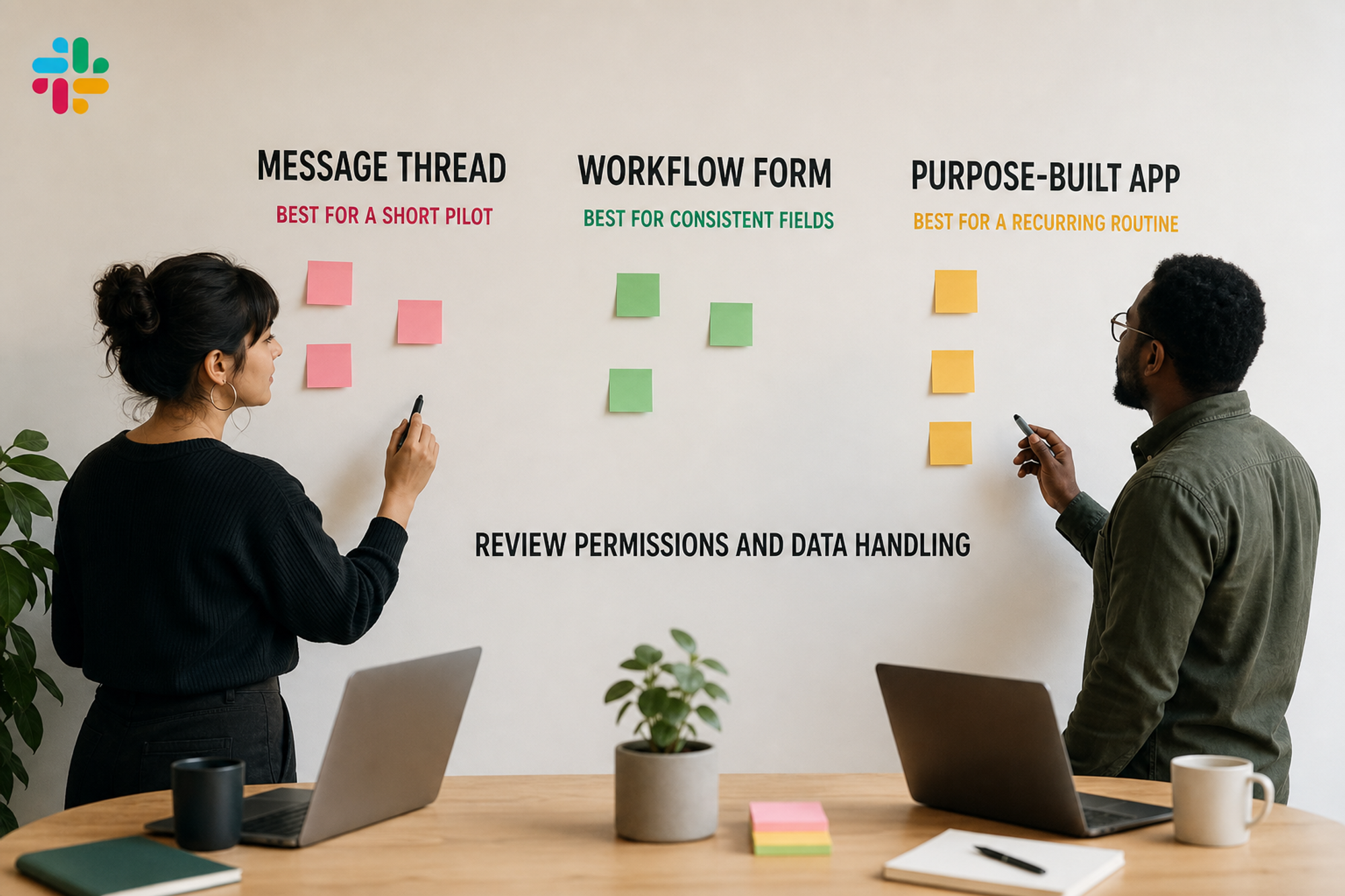
- Message thread: Best for a short pilot. Setup is minimal, but answers and corrections must be normalised by a person. A weekly roster is manual.
- Workflow form: Best when you need consistent fields and already use a paid Slack plan. Input is structured, but the shared output and change path require deliberate design.
- Purpose-built app: Best for a recurring routine across teams or locations. The roster is easier to keep current, but an owner or admin should review permissions, data handling and fit.
The visual below shows the same distinction: loose replies, structured collection and a recurring shared roster. It does not represent any specific product interface.
How to set up a Slack office attendance tracker
1. Write the outcome before choosing the tool
Complete this sentence: “By [deadline], [audience] can see [whose] planned office days for [date range and locations], so they can [decision].”
A useful example is: “By Friday afternoon, the Sydney team can see next week’s planned office days, so colleagues can arrange collaborative work and workplace operators can anticipate the shape of the week.”
2. Choose a clear channel structure
Use a channel people can predict and find. Slack recommends names based on familiar categories, including office locations, and a clear topic and description. Slack: Channel-naming guidelines
For one office, a channel such as #office-sydney can hold the weekly roster and related practical notes. For several offices, separate location channels are usually easier to scan than one long global thread. If the information should not be open to the whole workspace, use the appropriately restricted channel and document who has access.
3. Set one planning window
Choose when the next-week prompt appears, when the first summary becomes useful and how late changes are handled. The exact day matters less than consistency. Give people enough time to coordinate before commutes, meetings or room needs are fixed.
4. Use one response format
Keep the prompt short and operational. Copy this version and replace the brackets:
Office plans for the week beginning [DATE]
Please mark each day you expect to work from [LOCATION] by [DEADLINE]. Update your response if plans change.
Mon · Tue · Wed · Thu · Fri
Use the agreed private process for personal circumstances or sensitive requests.
A response should take seconds. If a form asks for information nobody uses, remove the field.
5. Make corrections easier than explanations
Plans change. Let people edit or toggle their own selection and ensure the shared view reflects the latest plan. Do not force someone to post a personal explanation just to correct Tuesday to Wednesday.
6. Name an owner and an expiry rule
An owner checks that the prompt ran, resolves ambiguous entries and supersedes old weekly summaries. The expiry rule can be simple: each new weekly roster becomes the current source of truth, and prior weeks remain only for the retention period your organisation has chosen.
Copy-and-use weekly operating template
The tracker is not the whole practice. Use this lightweight operating loop:
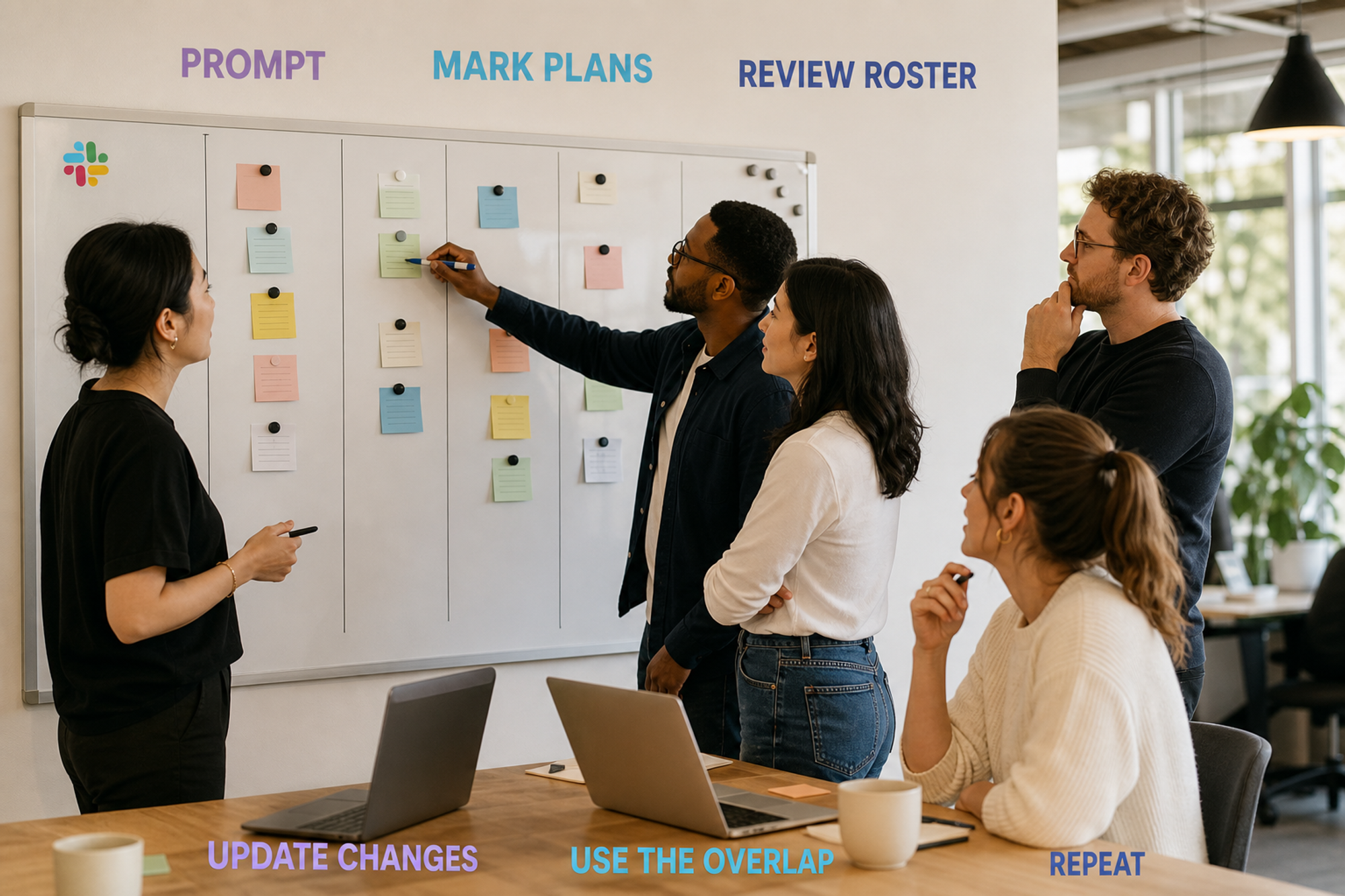
- Prompt. Post the next-week question at the agreed time in the location or team channel.
- Mark plans. Teammates select expected office days and the relevant location.
- Review the shared roster. People check who overlaps before arranging work that benefits from being together.
- Update changes. Each person corrects their own plan; the current view changes with it.
- Use the overlap. Put collaborative work, mentoring, decisions or social connection into the time people are actually together.
- Repeat and refine. Run the same loop next week and remove friction that caused late or unclear responses.
The diagram below transcribes that loop visually: scheduled prompt → teammates mark days → a shared roster → useful in-office time → the next prompt. No statistics are encoded in the image.
Seven questions for evaluating a tracker
Whether you build or buy, review the tracker against these questions:
- Can people see the coming week at a glance? A planning tool should show future intent, not just today’s status.
- Can each person correct their own plan? The shared roster should not wait for an administrator to fix routine changes.
- Does it separate locations clearly? “In the office” is incomplete when the organisation has more than one workplace.
- Can prompts recur without becoming noise? The cadence and destination should be configurable enough to match the team.
- Is the app or workflow permission set understandable? Review what it can view, post and change before enabling it.
- Is data handling proportionate to coordination? Collect only what the roster needs, and understand retention and export behaviour.
- Will the output change a real decision? Name how teammates or workplace operators will use the view. If nobody acts on it, simplify or stop collecting it.
Keep coordination separate from surveillance
A trustworthy setup states its purpose in the channel description and in the prompt. It distinguishes a plan from actual presence, and actual presence from performance. It also gives people a private route for sensitive exceptions.
For apps, inspect requested scopes and the developer’s privacy information. Slack notes that Marketplace review is not an endorsement or certification, so approval remains an organisational decision. Slack: Security recommendations for approving apps
For workflows, check who can run, edit and copy them, which connector accounts are authenticated, and where submitted information is sent. Revisit access when the owner changes roles or the workflow stops being used.
Why a Slack status is not a weekly roster
A Slack status is useful for current context, such as “in the office today” or “working from home”. Slack documents that members can set a status while availability is represented separately as active or away. Slack: Set status and availability
A status is less useful for deciding whether to commute next Thursday: it is individual, current and easy to overwrite. Use status for today’s context; use a weekly roster for future coordination.
Common setup mistakes
- Collecting plans in direct messages. The coordinator can see the answers, but teammates cannot use them.
- Mixing planned and actual attendance. A changed plan starts to look like a broken promise rather than ordinary coordination.
- Asking for too much detail. Long forms reduce clarity and can collect information the shared roster does not need.
- Publishing a summary that cannot change. One correction then creates two competing versions.
- Tracking without a decision. A roster should help people choose when to collaborate or help operators prepare, not exist as a weekly ritual.
Set up office-day visibility with Officedays
Officedays is a purpose-built Slack app for sharing planned office days and seeing who expects to be in. Its support documentation explains the current- and next-week commands, scheduled messages, weekday toggles, real-time changes and using separate channels for multiple offices. Read the setup and command guide.
If your team has not yet decided which days should overlap, use the office-day overlap worksheet first. Once the pattern is clear, the Slack tracker keeps weekly intent visible when individual plans vary.
When a shared weekly roster is more useful than assembling message replies, you can start with Officedays and review the current plans and feature limits. Keep the coordination purpose clear whichever method you choose.
Sources and methodology
This implementation guide was checked on July 14, 2026. It synthesises first-party Slack and Officedays documentation with a transparent operational comparison. It does not use survey results, search-volume estimates or a market-share dataset. Slack Help Center pages below do not display a publication date; the relevant feature state was verified on the access date. Geography and sample size are not applicable because these are product documentation sources, not studies.
- Slack, “What is a channel?”: channel visibility, topics, descriptions and threads; publication date not shown; accessed July 14, 2026.
- Slack, “Create guidelines for channel names”: location-based naming and clear channel descriptions; publication date not shown; accessed July 14, 2026.
- Slack, “Build a workflow: Create a workflow in Slack”: scheduled triggers, steps, plan availability and admin restrictions; publication date not shown; accessed July 14, 2026.
- Slack, “What is a Slack workflow?”: forms and recurring reminders as workflow uses; publication date not shown; accessed July 14, 2026.
- Slack, “Understand app permissions”: permission-scope evaluation and privacy review; publication date not shown; accessed July 14, 2026.
- Slack, “Security recommendations for approving apps”: app approval questions and the limits of Marketplace review; publication date not shown; accessed July 14, 2026.
- Slack, “Set your Slack status and availability”: the distinction between member status and active/away availability; publication date not shown; accessed July 14, 2026.
- Officedays support and pricing: product setup, commands, scheduled prompts, multiple channels, data handling and current plan details; accessed July 14, 2026.